
If you’ve ever sent a design file and heard “this isn’t set up correctly,” you’re not doing anything wrong. It’s a common moment of confusion, especially when no one explains what’s actually missing.
Print and digital follow different rules, and those differences aren’t always obvious. Something that looks great on your screen can fall apart in print. A file prepared for print can feel slow, oversized, or fuzzy online.
This guide is here to make that clearer.
You don’t need design experience to use it. You just need to know what you’re creating and where it needs to go.
First, Decide Where the Design Will Live
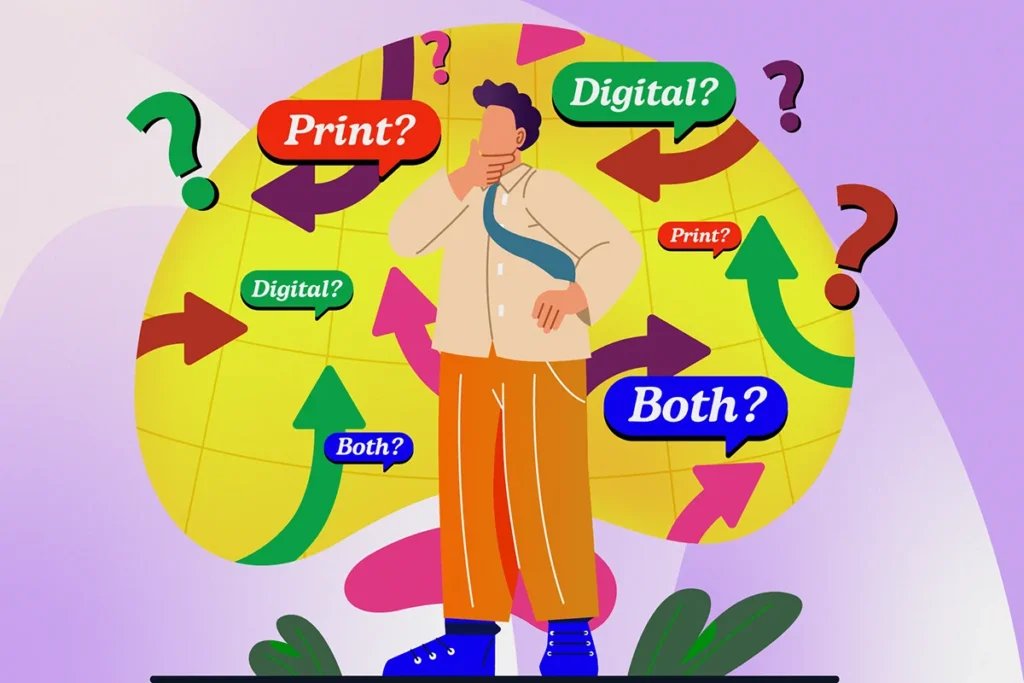
Before you open a file or export anything, answer this one question:
Is this being used for print, digital, or both?
That decision affects everything else.
- Print means physical items like posters, brochures, business cards, packaging, or signage
- Digital means screens like websites, social posts, emails, presentations, or ads
If the design needs to do both, you’ll usually need two versions.
File Size and Dimensions Matter More Than You Think

For print
Print uses real-world measurements.
- Set the size in inches or millimeters
- Design at 100 percent of the final size
- Use high resolution so details stay sharp
If you’re not sure of the size, ask the printer before starting. Saves both parties some heartache.
For digital
Digital uses pixels.
- Set the size based on where it will appear
- Common examples include social post sizes, website banners, or presentation slides
- Bigger isn’t always better. Large files can slow things down
Resolution: High for Print, Lighter for Digital
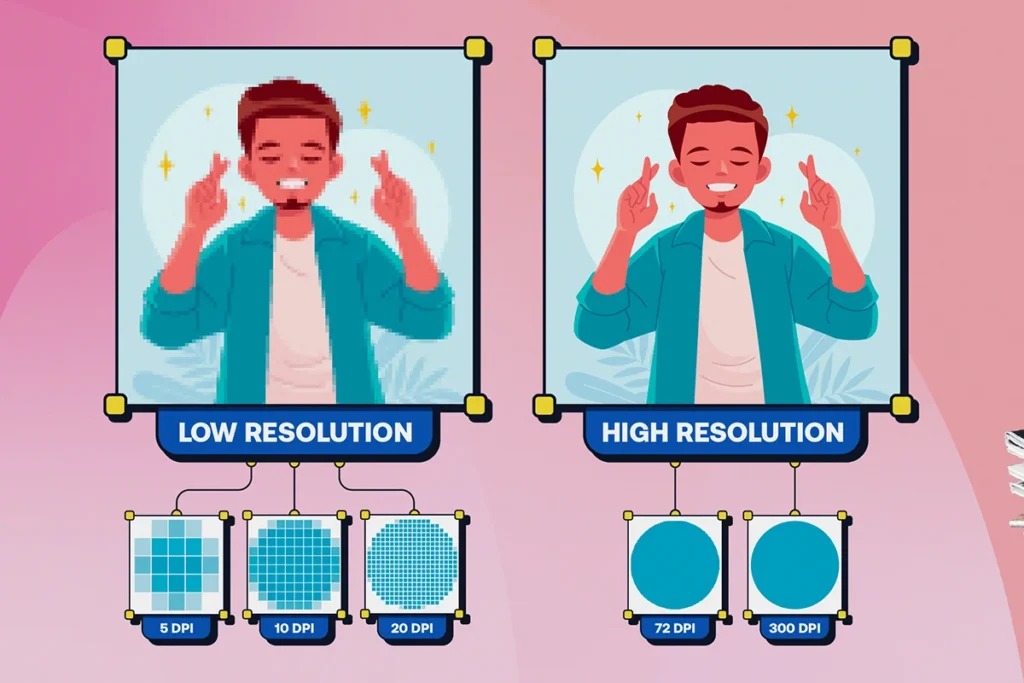
Resolution controls how detailed an image is.
- Print needs high resolution so images don’t look blurry when printed
- Digital needs lower resolution so files load quickly and display cleanly on screens
As a general rule:
- Print files should be high resolution
- Digital files should be optimized for screens
Color Works Differently on Paper and Screens
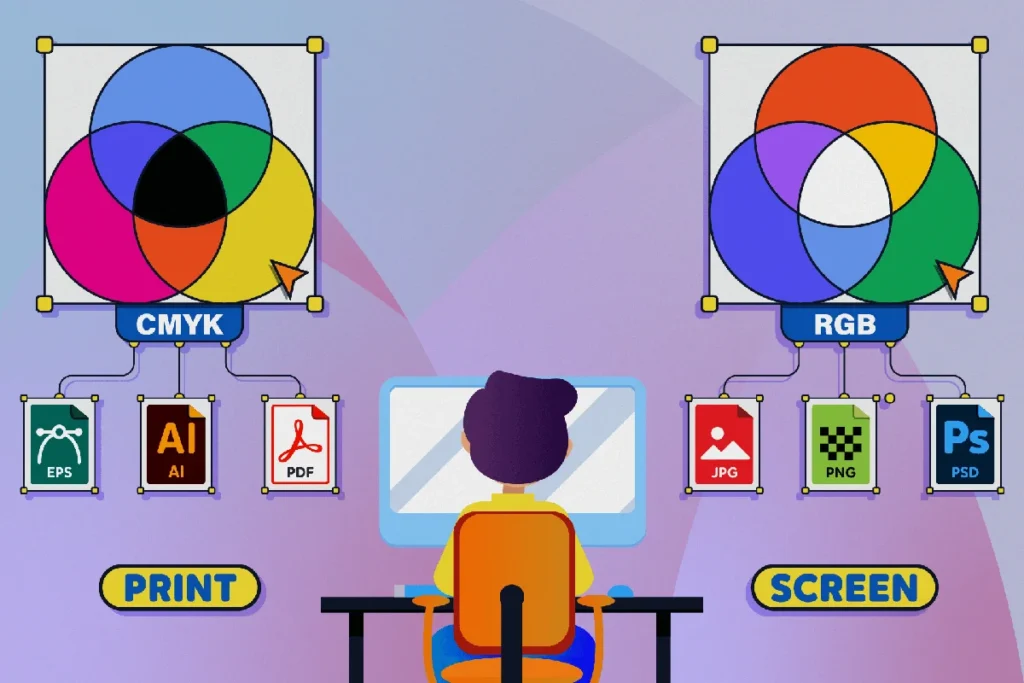
This is one of the biggest sources of confusion.
Print Uses Ink (CMYK)
Printed pieces use ink, not light. Colors are mixed using ink, which behaves very differently than what you see on a screen. Because of that, some bright or glowing screen colors simply can’t be printed in exactly the same way.
This is normal and expected when preparing anything for print.
Digital Uses Light (RGB)
Digital designs are made for screens, which use light to create color. Screens are brighter and more forgiving, so colors tend to look more vivid and saturated.
That’s why something can feel bold and punchy online but slightly softer once it’s printed.
What Does This Mean?
- Colors may look slightly different in print than on your screen
- Always review print proofs when possible
- Don’t assume what you see on your laptop is exactly what will come off the press
Fonts Can Break If They’re Not Handled Correctly
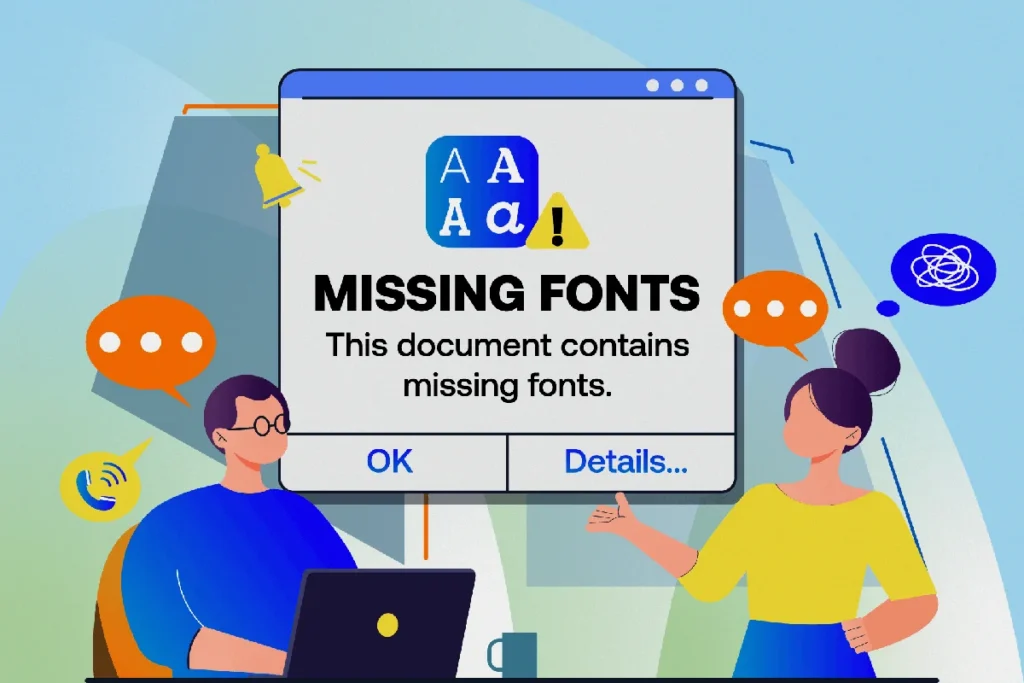
Fonts are a common issue, especially when sharing files.
For print
Printers need access to the fonts used in the design.
- Fonts should be embedded or outlined
- Missing fonts can cause text to change unexpectedly
For digital
Fonts are usually handled differently.
- Websites often use web-safe or licensed web fonts
- Files like PDFs or images don’t rely on the viewer’s system fonts
If you’re unsure, ask how the file will be used before sending it.
File Exporting Practices
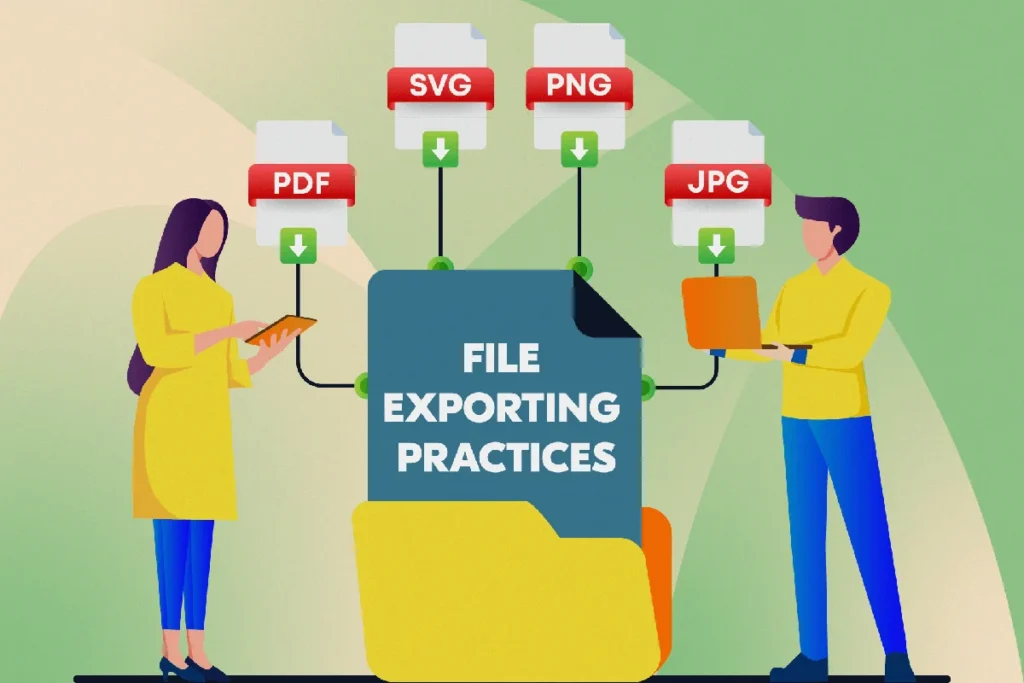
How you export a file matters as much as how you design it.
For Print
- Use print-ready formats like PDF
- Follow any specifications from the printer
- Double-check that nothing is cut off or too close to the edge
For Digital
- Use formats suited to screens like JPG, PNG, or SVG
- Keep file sizes reasonable
- Make sure text is readable on smaller screens
Common File Types, Explained Simply
If file formats feel confusing, here’s a helpful way to think about them.
For print:
- PDF is usually the safest and most widely accepted option
- Printers prefer PDFs because they preserve layout, fonts, and image quality
For digital:
- JPG works well for photos and social posts
- PNG is useful when you need transparency or sharper edges
- SVG is ideal for logos and icons because it scales cleanly on screens
If you’re ever unsure, ask the printer or platform what they prefer. It’s a normal question.
Use This Simple Checklist Before Sending Anything
Before you send a file, quickly check:
- Do I know if this is for print or digital
- Is the size set correctly for where it will be used
- Is the file prepared at the right quality level
- Are colors appropriate for the medium
- Will fonts display correctly
If you can answer yes to all five, you’re in good shape.
When to Ask for Help
If a printer, developer, or marketer asks for something you don’t recognize, it’s okay to pause.
Print and digital each have technical requirements, and they change depending on the project. Asking questions early can save time, money, and frustration later. Believe us…we’ve been doing this for 20 years.
Need help getting it right?
If you’re unsure how to prepare files or want someone to handle it for you, we’re happy to help you sort it out and make sure everything is set up correctly from the start.